
Patron Record Merging allows you to combine duplicate patron records into a single, complete record.
Merge a Patron Record
To merge a patron record, find the patron you want to merge, the source record. Then click the Edit button and select Merge into Another Record at the bottom of the patron panel.
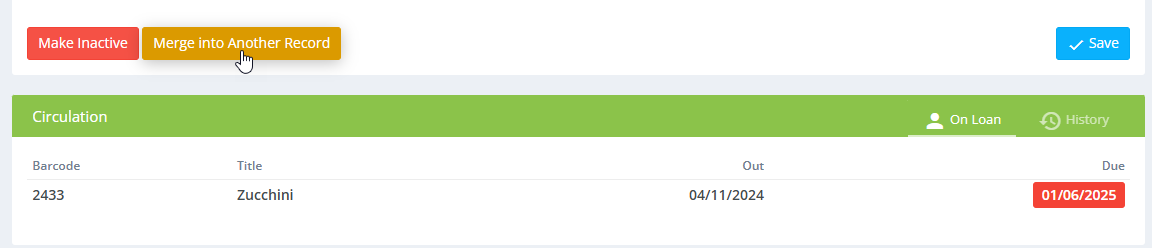
You will be asked to confirm that you want to begin the merge process.
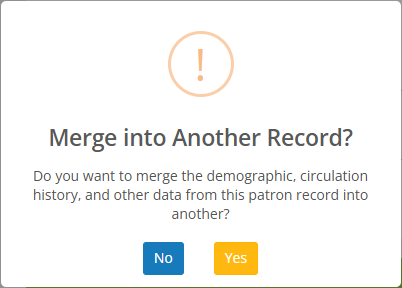
Click Yes to continue.
You will then see a message explaining the next step in the process.

Click OK to proceed.
Select the Target Record
Search for and select the patron record you want to merge into (the target record).
You can:
- Use the search bar
- Select from the list on the left
- Choose from Recent Patrons
Once the target record is displayed, you will be prompted to confirm your selection.
- Click Yes to continue
- Click No to choose a different record
- Click Cancel to stop the merge process

Final Confirmation
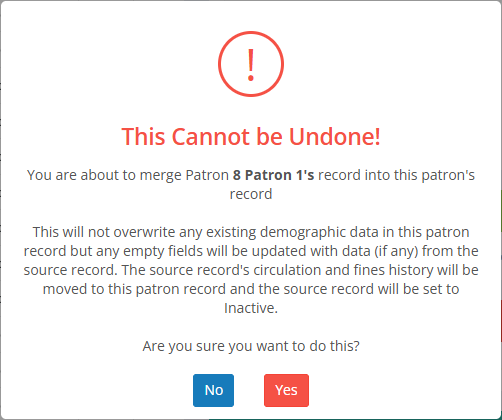
A final warning message will appear before completing the merge.
Click Yes to proceed.
What Happens After the Merge
Target Record
The selected target record will now include:
- Combined circulation history
- Combined ledger information
- Updated demographic details
- Any additional data such as photo and address from the source record
Source Record
The original source record will:
- Have circulation and ledger history removed
- Be marked as Inactive
You may choose to delete the source record if it is no longer needed.
Once a patron merge is completed, it cannot be reversed. Be sure you have selected the correct target record before confirming.
After completing a merge, review the updated patron record to ensure all data appears as expected and to re add any family connections (as these do not carry over) before deleting the source record.